
Linux Foundation Certified Kubernetes Security Specialist (CKS) - CKS Exam Practice Test
SIMULATION
You can switch the cluster/configuration context using the following command:
[desk@cli] $ kubectl config use-context dev
A default-deny NetworkPolicy avoid to accidentally expose a Pod in a namespace that doesn't have any other NetworkPolicy defined.
Task: Create a new default-deny NetworkPolicy named deny-network in the namespace test for all traffic of type Ingress + Egress The new NetworkPolicy must deny all Ingress + Egress traffic in the namespace test.
Apply the newly created default-deny NetworkPolicy to all Pods running in namespace test.
You can find a skeleton manifests file at /home/cert_masters/network-policy.yaml
You can switch the cluster/configuration context using the following command:
[desk@cli] $ kubectl config use-context dev
A default-deny NetworkPolicy avoid to accidentally expose a Pod in a namespace that doesn't have any other NetworkPolicy defined.
Task: Create a new default-deny NetworkPolicy named deny-network in the namespace test for all traffic of type Ingress + Egress The new NetworkPolicy must deny all Ingress + Egress traffic in the namespace test.
Apply the newly created default-deny NetworkPolicy to all Pods running in namespace test.
You can find a skeleton manifests file at /home/cert_masters/network-policy.yaml
Correct Answer:
See the Explanation below
Explanation:
master1 $ k get pods -n test --show-labels
NAME READY STATUS RESTARTS AGE LABELS
test-pod 1/1 Running 0 34s role=test,run=test-pod
testing 1/1 Running 0 17d run=testing
$ vim netpol.yaml
apiVersion: networking.k8s.io/v1
kind: NetworkPolicy
metadata:
name: deny-network
namespace: test
spec:
podSelector: {}
policyTypes:
- Ingress
- Egress
master1 $ k apply -f netpol.yaml
Explanation:
controlplane $ k get pods -n test --show-labels
NAME READY STATUS RESTARTS AGE LABELS
test-pod 1/1 Running 0 34s role=test,run=test-pod
testing 1/1 Running 0 17d run=testing
master1 $ vim netpol1.yaml
apiVersion: networking.k8s.io/v1
kind: NetworkPolicy
metadata:
name: deny-network
namespace: test
spec:
podSelector: {}
policyTypes:
- Ingress
- Egress
master1 $ k apply -f netpol1.yaml
Reference:
https://kubernetes.io/docs/concepts/services-networking/network-policies/ Explanation:
controlplane $ k get pods -n test --show-labels
NAME READY STATUS RESTARTS AGE LABELS
test-pod 1/1 Running 0 34s role=test,run=test-pod
testing 1/1 Running 0 17d run=testing
master1 $ vim netpol1.yaml
apiVersion: networking.k8s.io/v1
kind: NetworkPolicy
metadata:
name: deny-network
namespace: test
spec:
podSelector: {}
policyTypes:
- Ingress
- Egress
master1 $ k apply -f netpol1.yaml
https://kubernetes.io/docs/concepts/services-networking/network-policies/
Explanation:
master1 $ k get pods -n test --show-labels
NAME READY STATUS RESTARTS AGE LABELS
test-pod 1/1 Running 0 34s role=test,run=test-pod
testing 1/1 Running 0 17d run=testing
$ vim netpol.yaml
apiVersion: networking.k8s.io/v1
kind: NetworkPolicy
metadata:
name: deny-network
namespace: test
spec:
podSelector: {}
policyTypes:
- Ingress
- Egress
master1 $ k apply -f netpol.yaml
Explanation:
controlplane $ k get pods -n test --show-labels
NAME READY STATUS RESTARTS AGE LABELS
test-pod 1/1 Running 0 34s role=test,run=test-pod
testing 1/1 Running 0 17d run=testing
master1 $ vim netpol1.yaml
apiVersion: networking.k8s.io/v1
kind: NetworkPolicy
metadata:
name: deny-network
namespace: test
spec:
podSelector: {}
policyTypes:
- Ingress
- Egress
master1 $ k apply -f netpol1.yaml
Reference:
https://kubernetes.io/docs/concepts/services-networking/network-policies/ Explanation:
controlplane $ k get pods -n test --show-labels
NAME READY STATUS RESTARTS AGE LABELS
test-pod 1/1 Running 0 34s role=test,run=test-pod
testing 1/1 Running 0 17d run=testing
master1 $ vim netpol1.yaml
apiVersion: networking.k8s.io/v1
kind: NetworkPolicy
metadata:
name: deny-network
namespace: test
spec:
podSelector: {}
policyTypes:
- Ingress
- Egress
master1 $ k apply -f netpol1.yaml
https://kubernetes.io/docs/concepts/services-networking/network-policies/
SIMULATION
Documentation Ingress, Service, NGINX Ingress Controller
You must connect to the correct host . Failure to do so may result in a zero score.
[candidate@base] $ ssh cks000032
Context
You must expose a web application using HTTPS routes.
Task
Create an Ingress resource named web in the prod namespace and configure it as follows:
. Route traffic for host web.k8s.local and all paths to the existing Service web
. Enable TLS termination using the existing Secret web-cert.
. Redirect HTTP requests to HTTPS .
You can test your Ingress configuration with the following command:
[candidate@cks000032]$ curl -L http://web.k8s.local
Documentation Ingress, Service, NGINX Ingress Controller
You must connect to the correct host . Failure to do so may result in a zero score.
[candidate@base] $ ssh cks000032
Context
You must expose a web application using HTTPS routes.
Task
Create an Ingress resource named web in the prod namespace and configure it as follows:
. Route traffic for host web.k8s.local and all paths to the existing Service web
. Enable TLS termination using the existing Secret web-cert.
. Redirect HTTP requests to HTTPS .
You can test your Ingress configuration with the following command:
[candidate@cks000032]$ curl -L http://web.k8s.local
Correct Answer:
See the Explanation below for complete solution
Explanation:
1) Connect to the correct host
ssh cks000032
sudo -i
2) Use admin kubeconfig
export KUBECONFIG=/etc/kubernetes/admin.conf
3) Verify prerequisites (quick check)
These should already exist per task.
kubectl -n prod get svc web
kubectl -n prod get secret web-cert
kubectl get pods -n ingress-nginx
(If the ingress controller pods exist, you're good.)
4) Create the Ingress resource
Create Ingress named web in namespace prod with:
host: web.k8s.local
all paths → Service web
TLS using Secret web-cert
HTTP → HTTPS redirect (NGINX)
cat <<EOF | kubectl apply -f -
apiVersion: networking.k8s.io/v1
kind: Ingress
metadata:
name: web
namespace: prod
annotations:
nginx.ingress.kubernetes.io/ssl-redirect: "true"
nginx.ingress.kubernetes.io/force-ssl-redirect: "true"
spec:
ingressClassName: nginx
tls:
- hosts:
- web.k8s.local
secretName: web-cert
rules:
- host: web.k8s.local
http:
paths:
- path: /
pathType: Prefix
backend:
service:
name: web
port:
number: 80
EOF
5) Verify Ingress creation
kubectl -n prod get ingress web
kubectl -n prod describe ingress web
Confirm:
Host = web.k8s.local
TLS Secret = web-cert
Backend Service = web
6) Test HTTP → HTTPS redirect
curl -L http://web.k8s.local
Expected:
Redirects to https://web.k8s.local
Returns application response over HTTPS
Explanation:
1) Connect to the correct host
ssh cks000032
sudo -i
2) Use admin kubeconfig
export KUBECONFIG=/etc/kubernetes/admin.conf
3) Verify prerequisites (quick check)
These should already exist per task.
kubectl -n prod get svc web
kubectl -n prod get secret web-cert
kubectl get pods -n ingress-nginx
(If the ingress controller pods exist, you're good.)
4) Create the Ingress resource
Create Ingress named web in namespace prod with:
host: web.k8s.local
all paths → Service web
TLS using Secret web-cert
HTTP → HTTPS redirect (NGINX)
cat <<EOF | kubectl apply -f -
apiVersion: networking.k8s.io/v1
kind: Ingress
metadata:
name: web
namespace: prod
annotations:
nginx.ingress.kubernetes.io/ssl-redirect: "true"
nginx.ingress.kubernetes.io/force-ssl-redirect: "true"
spec:
ingressClassName: nginx
tls:
- hosts:
- web.k8s.local
secretName: web-cert
rules:
- host: web.k8s.local
http:
paths:
- path: /
pathType: Prefix
backend:
service:
name: web
port:
number: 80
EOF
5) Verify Ingress creation
kubectl -n prod get ingress web
kubectl -n prod describe ingress web
Confirm:
Host = web.k8s.local
TLS Secret = web-cert
Backend Service = web
6) Test HTTP → HTTPS redirect
curl -L http://web.k8s.local
Expected:
Redirects to https://web.k8s.local
Returns application response over HTTPS
SIMULATION
Cluster: dev
Master node: master1
Worker node: worker1
You can switch the cluster/configuration context using the following command:
[desk@cli] $ kubectl config use-context dev
Task:
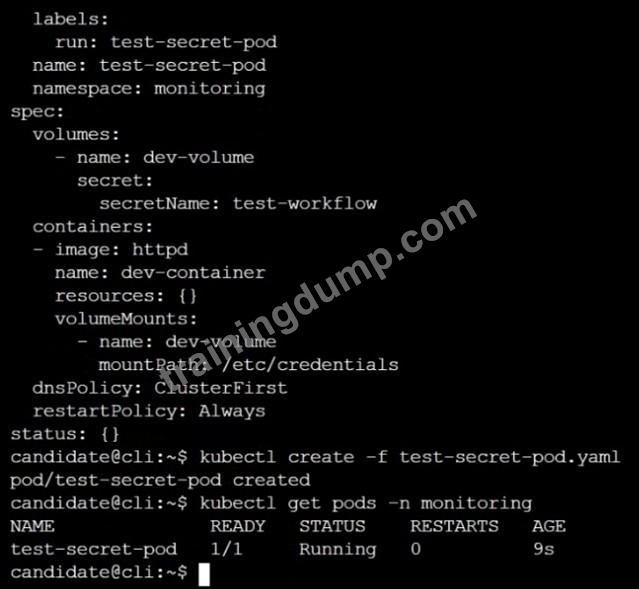
Retrieve the content of the existing secret named adam in the safe namespace.
Store the username field in a file names /home/cert-masters/username.txt, and the password field in a file named /home/cert-masters/password.txt.
1. You must create both files; they don't exist yet.
2. Do not use/modify the created files in the following steps, create new temporary files if needed.
Create a new secret names newsecret in the safe namespace, with the following content:
Username: dbadmin
Password: moresecurepas
Finally, create a new Pod that has access to the secret newsecret via a volume:
Namespace: safe
Pod name: mysecret-pod
Container name: db-container
Image: redis
Volume name: secret-vol
Mount path: /etc/mysecret
Cluster: dev
Master node: master1
Worker node: worker1
You can switch the cluster/configuration context using the following command:
[desk@cli] $ kubectl config use-context dev
Task:
Retrieve the content of the existing secret named adam in the safe namespace.
Store the username field in a file names /home/cert-masters/username.txt, and the password field in a file named /home/cert-masters/password.txt.
1. You must create both files; they don't exist yet.
2. Do not use/modify the created files in the following steps, create new temporary files if needed.
Create a new secret names newsecret in the safe namespace, with the following content:
Username: dbadmin
Password: moresecurepas
Finally, create a new Pod that has access to the secret newsecret via a volume:
Namespace: safe
Pod name: mysecret-pod
Container name: db-container
Image: redis
Volume name: secret-vol
Mount path: /etc/mysecret
Correct Answer:
See the Explanation below
Explanation:



Explanation:
SIMULATION
Documentation Deployment, Pod, Namespace
You must connect to the correct host . Failure to do so may result in a zero score.
[candidate@base] $ ssh cks000028
Context
You must update an existing Pod to ensure the immutability of its containers.
Task
Modify the existing Deployment named lamp-deployment, running in namespace lamp, so that its containers:
. run with user ID 20000
. use a read-only root filesystem
. forbid privilege escalation
The Deployment's manifest file con be found at /home/candidate/finer-sunbeam/lamp-deployment.yaml.
Documentation Deployment, Pod, Namespace
You must connect to the correct host . Failure to do so may result in a zero score.
[candidate@base] $ ssh cks000028
Context
You must update an existing Pod to ensure the immutability of its containers.
Task
Modify the existing Deployment named lamp-deployment, running in namespace lamp, so that its containers:
. run with user ID 20000
. use a read-only root filesystem
. forbid privilege escalation
The Deployment's manifest file con be found at /home/candidate/finer-sunbeam/lamp-deployment.yaml.
Correct Answer:
See the Explanation below for complete solution
Explanation:
1) Connect to the correct host
ssh cks000028
sudo -i
2) Use the right kubeconfig (safe in exam)
export KUBECONFIG=/etc/kubernetes/admin.conf
3) Open the provided Deployment manifest
vi /home/candidate/finer-sunbeam/lamp-deployment.yaml
4) Edit ONLY the Pod template security settings (add/modify these fields) Inside:
spec: -> template: -> spec:
4.1 Set container to run as user 20000
Add (or change) under the container securityContext::
securityContext:
runAsUser: 20000
4.2 Make root filesystem read-only
In the SAME container securityContext: ensure:
readOnlyRootFilesystem: true
4.3 Forbid privilege escalation
In the SAME container securityContext: ensure:
allowPrivilegeEscalation: false
✅ The container section should look like this (example - keep your existing image/ports/etc):
spec:
template:
spec:
containers:
- name: <your-container-name>
image: <unchanged>
securityContext:
runAsUser: 20000
readOnlyRootFilesystem: true
allowPrivilegeEscalation: false
If there are multiple containers, apply the same securityContext to each container.
Save and exit:
:wq
5) Apply the manifest (updates Deployment -> recreates Pods)
kubectl -n lamp apply -f /home/candidate/finer-sunbeam/lamp-deployment.yaml
6) Wait for rollout
kubectl -n lamp rollout status deployment/lamp-deployment
7) Verify the security settings are live
7.1 Check the Pod is running
kubectl -n lamp get pods -l app=lamp -o wide
(if label differs, just kubectl -n lamp get pods)
7.2 Verify the three fields on a running Pod
Pick the Pod name and run:
POD=$(kubectl -n lamp get pods -o jsonpath='{.items[0].metadata.name}') kubectl -n lamp get pod $POD -o jsonpath='{.spec.containers[0].securityContext.runAsUser}{"\n"}{.spec.containers[0].securityContext.readOnlyRootFilesystem}{"\n"}{.spec.containers[0].securityContext.allowPrivilegeEscalation}{"\n"}' Expected output:
20000
true
false
If the pod fails after readOnlyRootFilesystem=true
Don't change the requirement (task demands it). Usually the app needs writable dirs via volumes, but the task doesn't ask for that-so only adjust if the manifest already has volumes and just needs these securityContext fields.
Explanation:
1) Connect to the correct host
ssh cks000028
sudo -i
2) Use the right kubeconfig (safe in exam)
export KUBECONFIG=/etc/kubernetes/admin.conf
3) Open the provided Deployment manifest
vi /home/candidate/finer-sunbeam/lamp-deployment.yaml
4) Edit ONLY the Pod template security settings (add/modify these fields) Inside:
spec: -> template: -> spec:
4.1 Set container to run as user 20000
Add (or change) under the container securityContext::
securityContext:
runAsUser: 20000
4.2 Make root filesystem read-only
In the SAME container securityContext: ensure:
readOnlyRootFilesystem: true
4.3 Forbid privilege escalation
In the SAME container securityContext: ensure:
allowPrivilegeEscalation: false
✅ The container section should look like this (example - keep your existing image/ports/etc):
spec:
template:
spec:
containers:
- name: <your-container-name>
image: <unchanged>
securityContext:
runAsUser: 20000
readOnlyRootFilesystem: true
allowPrivilegeEscalation: false
If there are multiple containers, apply the same securityContext to each container.
Save and exit:
:wq
5) Apply the manifest (updates Deployment -> recreates Pods)
kubectl -n lamp apply -f /home/candidate/finer-sunbeam/lamp-deployment.yaml
6) Wait for rollout
kubectl -n lamp rollout status deployment/lamp-deployment
7) Verify the security settings are live
7.1 Check the Pod is running
kubectl -n lamp get pods -l app=lamp -o wide
(if label differs, just kubectl -n lamp get pods)
7.2 Verify the three fields on a running Pod
Pick the Pod name and run:
POD=$(kubectl -n lamp get pods -o jsonpath='{.items[0].metadata.name}') kubectl -n lamp get pod $POD -o jsonpath='{.spec.containers[0].securityContext.runAsUser}{"\n"}{.spec.containers[0].securityContext.readOnlyRootFilesystem}{"\n"}{.spec.containers[0].securityContext.allowPrivilegeEscalation}{"\n"}' Expected output:
20000
true
false
If the pod fails after readOnlyRootFilesystem=true
Don't change the requirement (task demands it). Usually the app needs writable dirs via volumes, but the task doesn't ask for that-so only adjust if the manifest already has volumes and just needs these securityContext fields.
SIMULATION
Create a PSP that will only allow the persistentvolumeclaim as the volume type in the namespace restricted.
Create a new PodSecurityPolicy named prevent-volume-policy which prevents the pods which is having different volumes mount apart from persistentvolumeclaim.
Create a new ServiceAccount named psp-sa in the namespace restricted.
Create a new ClusterRole named psp-role, which uses the newly created Pod Security Policy prevent-volume-policy Create a new ClusterRoleBinding named psp-role-binding, which binds the created ClusterRole psp-role to the created SA psp-sa.
Hint:
Also, Check the Configuration is working or not by trying to Mount a Secret in the pod maifest, it should get failed.
POD Manifest:
apiVersion: v1
kind: Pod
metadata:
name:
spec:
containers:
- name:
image:
volumeMounts:
- name:
mountPath:
volumes:
- name:
secret:
secretName:
Create a PSP that will only allow the persistentvolumeclaim as the volume type in the namespace restricted.
Create a new PodSecurityPolicy named prevent-volume-policy which prevents the pods which is having different volumes mount apart from persistentvolumeclaim.
Create a new ServiceAccount named psp-sa in the namespace restricted.
Create a new ClusterRole named psp-role, which uses the newly created Pod Security Policy prevent-volume-policy Create a new ClusterRoleBinding named psp-role-binding, which binds the created ClusterRole psp-role to the created SA psp-sa.
Hint:
Also, Check the Configuration is working or not by trying to Mount a Secret in the pod maifest, it should get failed.
POD Manifest:
apiVersion: v1
kind: Pod
metadata:
name:
spec:
containers:
- name:
image:
volumeMounts:
- name:
mountPath:
volumes:
- name:
secret:
secretName:
Correct Answer:
See the Explanation belowExplanation:
apiVersion: policy/v1beta1
kind: PodSecurityPolicy
metadata:
name: restricted
annotations:
seccomp.security.alpha.kubernetes.io/allowedProfileNames: 'docker/default,runtime/default' apparmor.security.beta.kubernetes.io/allowedProfileNames: 'runtime/default' seccomp.security.alpha.kubernetes.io/defaultProfileName: 'runtime/default' apparmor.security.beta.kubernetes.io/defaultProfileName: 'runtime/default' spec:
privileged: false
# Required to prevent escalations to root.
allowPrivilegeEscalation: false
# This is redundant with non-root + disallow privilege escalation,
# but we can provide it for defense in depth.
requiredDropCapabilities:
- ALL
# Allow core volume types.
volumes:
- 'configMap'
- 'emptyDir'
- 'projected'
- 'secret'
- 'downwardAPI'
# Assume that persistentVolumes set up by the cluster admin are safe to use.
- 'persistentVolumeClaim'
hostNetwork: false
hostIPC: false
hostPID: false
runAsUser:
# Require the container to run without root privileges.
rule: 'MustRunAsNonRoot'
seLinux:
# This policy assumes the nodes are using AppArmor rather than SELinux.
rule: 'RunAsAny'
supplementalGroups:
rule: 'MustRunAs'
ranges:
# Forbid adding the root group.
- min: 1
max: 65535
fsGroup:
rule: 'MustRunAs'
ranges:
# Forbid adding the root group.
- min: 1
max: 65535
readOnlyRootFilesystem: false
apiVersion: policy/v1beta1
kind: PodSecurityPolicy
metadata:
name: restricted
annotations:
seccomp.security.alpha.kubernetes.io/allowedProfileNames: 'docker/default,runtime/default' apparmor.security.beta.kubernetes.io/allowedProfileNames: 'runtime/default' seccomp.security.alpha.kubernetes.io/defaultProfileName: 'runtime/default' apparmor.security.beta.kubernetes.io/defaultProfileName: 'runtime/default' spec:
privileged: false
# Required to prevent escalations to root.
allowPrivilegeEscalation: false
# This is redundant with non-root + disallow privilege escalation,
# but we can provide it for defense in depth.
requiredDropCapabilities:
- ALL
# Allow core volume types.
volumes:
- 'configMap'
- 'emptyDir'
- 'projected'
- 'secret'
- 'downwardAPI'
# Assume that persistentVolumes set up by the cluster admin are safe to use.
- 'persistentVolumeClaim'
hostNetwork: false
hostIPC: false
hostPID: false
runAsUser:
# Require the container to run without root privileges.
rule: 'MustRunAsNonRoot'
seLinux:
# This policy assumes the nodes are using AppArmor rather than SELinux.
rule: 'RunAsAny'
supplementalGroups:
rule: 'MustRunAs'
ranges:
# Forbid adding the root group.
- min: 1
max: 65535
fsGroup:
rule: 'MustRunAs'
ranges:
# Forbid adding the root group.
- min: 1
max: 65535
readOnlyRootFilesystem: false
SIMULATION

Context
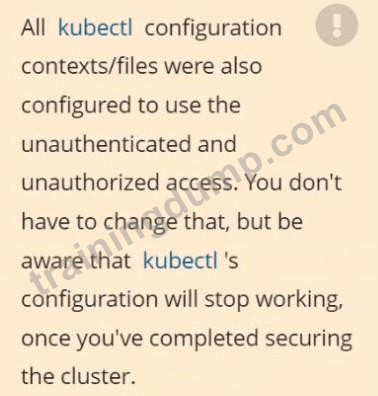
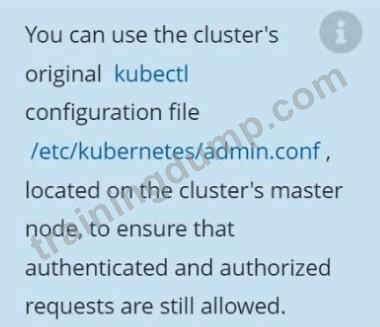
The kubeadm-created cluster's Kubernetes API server was, for testing purposes, temporarily configured to allow unauthenticated and unauthorized access granting the anonymous user duster-admin access.
Task
Reconfigure the cluster's Kubernetes API server to ensure that only authenticated and authorized REST requests are allowed.
Use authorization mode Node,RBAC and admission controller NodeRestriction.
Cleaning up, remove the ClusterRoleBinding for user system:anonymous.
Context
The kubeadm-created cluster's Kubernetes API server was, for testing purposes, temporarily configured to allow unauthenticated and unauthorized access granting the anonymous user duster-admin access.
Task
Reconfigure the cluster's Kubernetes API server to ensure that only authenticated and authorized REST requests are allowed.
Use authorization mode Node,RBAC and admission controller NodeRestriction.
Cleaning up, remove the ClusterRoleBinding for user system:anonymous.
Correct Answer:
See the Explanation below
Explanation:


Explanation:
SIMULATION
Documentation
Installing the Sidecar, PeerAuthentication, Deployments
You must connect to the correct host . Failure to do so may result in a zero score.
[candidate@base] $ ssh cks000041
Context
A microservices-based application using unencrypted Layer 4 (L4) transport must be secured with Istio.
Task
Perform the following tasks to secure an existing application's Layer 4 (L4) transport communication using Istio.
Istio is installed to secure Layer 4 (L4) communications.
You may use your browser to access Istio's documentation.
First, ensure that all Pods in the mtls namespace have the istio-proxy sidecar injected.
Next, configure mutual authentication in strict mode for all workloads in the mtls namespace.
Documentation
Installing the Sidecar, PeerAuthentication, Deployments
You must connect to the correct host . Failure to do so may result in a zero score.
[candidate@base] $ ssh cks000041
Context
A microservices-based application using unencrypted Layer 4 (L4) transport must be secured with Istio.
Task
Perform the following tasks to secure an existing application's Layer 4 (L4) transport communication using Istio.
Istio is installed to secure Layer 4 (L4) communications.
You may use your browser to access Istio's documentation.
First, ensure that all Pods in the mtls namespace have the istio-proxy sidecar injected.
Next, configure mutual authentication in strict mode for all workloads in the mtls namespace.
Correct Answer:
See the Explanation below for complete solution
Explanation:
Below is the CKS exam-ready, step-by-step solution for QUESTION 15.
Follow exactly in this order. No extra changes.
QUESTION 15 - Istio mTLS (EXAM MODE)
1) Connect to the correct host
ssh cks000041
sudo -i
export KUBECONFIG=/etc/kubernetes/admin.conf
2) Ensure sidecar injection is enabled for the mtls namespace
2.1 Check current namespace labels
kubectl get ns mtls --show-labels
2.2 Enable automatic Istio sidecar injection
kubectl label namespace mtls istio-injection=enabled --overwrite
Verify:
kubectl get ns mtls --show-labels | grep istio-injection
Expected:
istio-injection=enabled
3) Ensure ALL Pods get the istio-proxy sidecar
Existing Pods will not get sidecars automatically.
You must restart workloads in the namespace.
3.1 Restart all Deployments in mtls
kubectl -n mtls rollout restart deployment
3.2 Verify Pods now have 2 containers (app + istio-proxy)
kubectl -n mtls get pods
Then check one Pod:
kubectl -n mtls get pod <pod-name> -o jsonpath='{.spec.containers[*].name}{"\n"}' Expected output includes:
istio-proxy
4) Configure mutual TLS (mTLS) in STRICT mode
4.1 Create a PeerAuthentication for the mtls namespace
cat <<EOF | kubectl apply -f -
apiVersion: security.istio.io/v1beta1
kind: PeerAuthentication
metadata:
name: mtls-strict
namespace: mtls
spec:
mtls:
mode: STRICT
EOF
5) Verify mTLS policy is applied
kubectl -n mtls get peerauthentication
kubectl -n mtls describe peerauthentication mtls-strict
Expected:
Mode: STRICT
6) Final verification (exam confidence check)
6.1 Confirm all Pods are Running
kubectl -n mtls get pods
6.2 Confirm sidecar injection everywhere
kubectl -n mtls get pods -o jsonpath='{range .items[*]}{.metadata.name}{" -> "}{.spec.containers[*].name}{"\n"}{end}' Each line must include istio-proxy.
Explanation:
Below is the CKS exam-ready, step-by-step solution for QUESTION 15.
Follow exactly in this order. No extra changes.
QUESTION 15 - Istio mTLS (EXAM MODE)
1) Connect to the correct host
ssh cks000041
sudo -i
export KUBECONFIG=/etc/kubernetes/admin.conf
2) Ensure sidecar injection is enabled for the mtls namespace
2.1 Check current namespace labels
kubectl get ns mtls --show-labels
2.2 Enable automatic Istio sidecar injection
kubectl label namespace mtls istio-injection=enabled --overwrite
Verify:
kubectl get ns mtls --show-labels | grep istio-injection
Expected:
istio-injection=enabled
3) Ensure ALL Pods get the istio-proxy sidecar
Existing Pods will not get sidecars automatically.
You must restart workloads in the namespace.
3.1 Restart all Deployments in mtls
kubectl -n mtls rollout restart deployment
3.2 Verify Pods now have 2 containers (app + istio-proxy)
kubectl -n mtls get pods
Then check one Pod:
kubectl -n mtls get pod <pod-name> -o jsonpath='{.spec.containers[*].name}{"\n"}' Expected output includes:
istio-proxy
4) Configure mutual TLS (mTLS) in STRICT mode
4.1 Create a PeerAuthentication for the mtls namespace
cat <<EOF | kubectl apply -f -
apiVersion: security.istio.io/v1beta1
kind: PeerAuthentication
metadata:
name: mtls-strict
namespace: mtls
spec:
mtls:
mode: STRICT
EOF
5) Verify mTLS policy is applied
kubectl -n mtls get peerauthentication
kubectl -n mtls describe peerauthentication mtls-strict
Expected:
Mode: STRICT
6) Final verification (exam confidence check)
6.1 Confirm all Pods are Running
kubectl -n mtls get pods
6.2 Confirm sidecar injection everywhere
kubectl -n mtls get pods -o jsonpath='{range .items[*]}{.metadata.name}{" -> "}{.spec.containers[*].name}{"\n"}{end}' Each line must include istio-proxy.